Project Explorer
The Project Explorer allows editing the various parameters of the objects in your projects: songs, instruments, generators, effects, samples, etc.
This section will try to break down each major type of object, explain their various parameters and show how most of them can be automated (i.e. controller) in various ways.
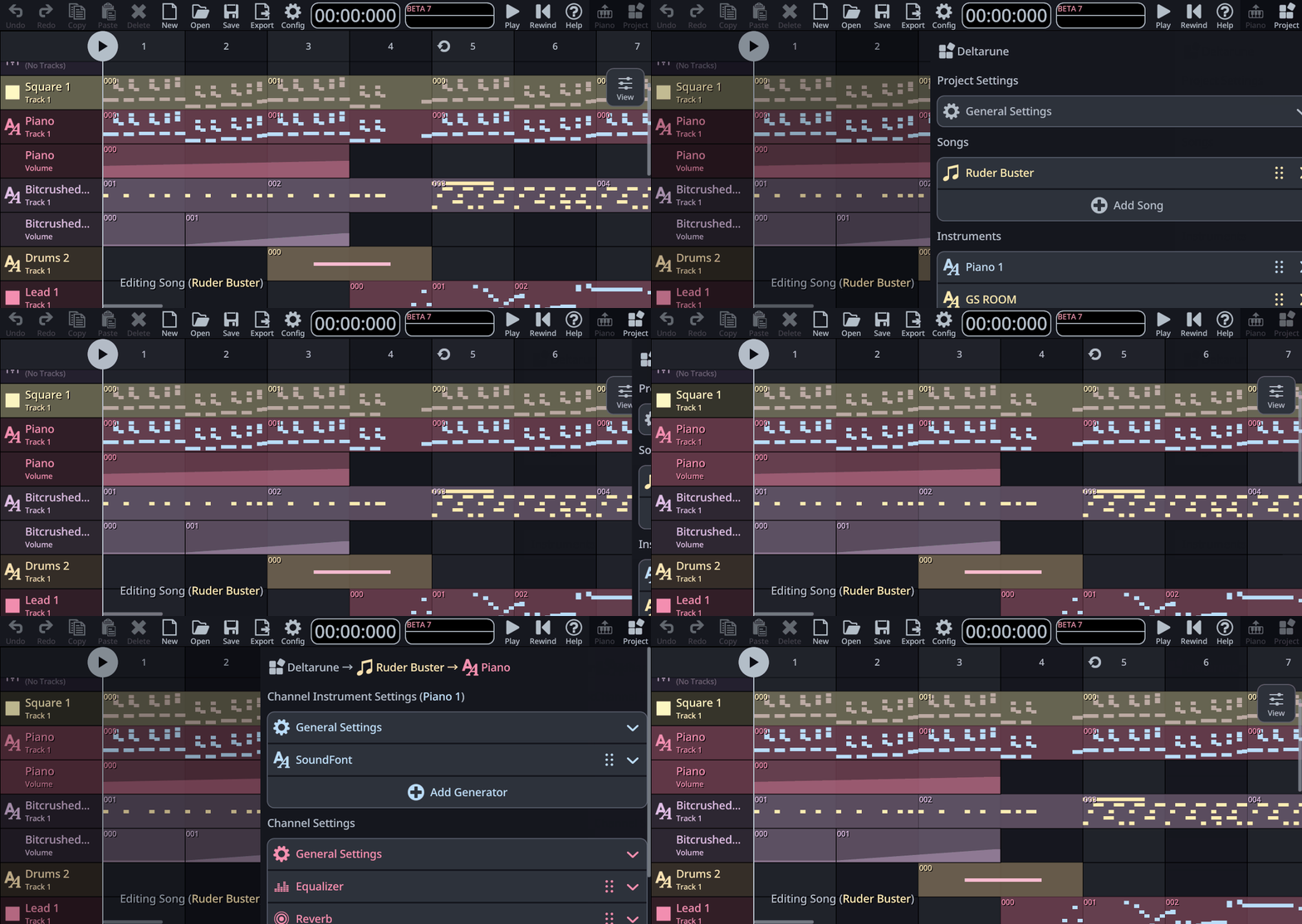
On mobile the project explorer is not always visible, and slides from the right side on demand by pressing the Project button from the toolbar. A much quicker way to open it and navigate directly to a channel is to double-tap on a channel's name in the sequencer.
The project explorer displays parameters in sections that can be expanded and collapsed. Some sections will be collapsed by default, and will need to be expanded to reveal the parameters, especially on mobile where vertical space is limited.
Some items (songs, instruments, generators, effects) will show little re-order grips that can be used to move them up/down in a stack. Also, most item will have context menus that can be accessed by right-clicking desktop or long pressing on mobile. The context menus will contain functionalities to duplicate and copy/paste parameters.
Project structure
At the very top of the project explorer is the Navigation bar. Much like the folder hierarchy on a computer, it shows the path of the current object in your project.
In the example below, the "Bitcrushed Drum 1" channel is contained in the "Ruder Buster" song, which is itself part of the "Deltarune" project. Each portion of the path is clickable and will bring you to that specific object.

The general structure of a project in KiraStudio is:
- A project contains one or more song(s)
- Each song contains a series of channel(s)
- Each channel (which may any of the 3 types) may contain effect(s).
- Each song contains a series of channel(s)
- A project also contains zero or more instrument(s)
- Each instruments is made of generator(s) and may contains sample(s)
Editing the project
The project is accessed by clicking the first link in the navigation bar.
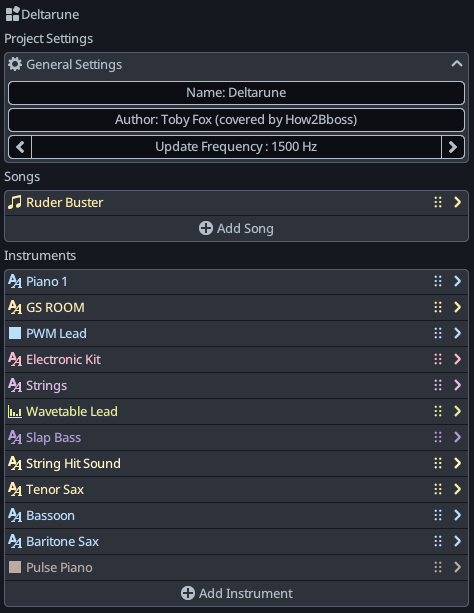
Project parameters
The project itself has some basic parameters such as a name and author. The only other one worth mentionning is the Update Frequency. This is the frequency at which the app will perform tasks like : advancing the song, update the various forms of automation, advancing the envelopes/sequences, etc.
Lowering the update frequency to something like 50 or 60 Hz can be used to mimic how retro game system only updated their state once per frame (60 FPS on NTSC, 50 FPS on PAL). It can make things sound a bit more uneven and crunchy.
Some things like sequences and wavetables are intimately connected to the project update rate, so understanding this concept is important if you are planning to use those.
On the technical side, KiraStudio generates all audio in chunks of 32 samples. Things like envelopes and automation curves are only evaluated once every chunk since those are basically assumed to be LFOs. At 48 KHz, which is the sample rate used by the app, this gives a maximum update rate of 48000 / 32 = 1500 Hz.
Adding songs
Below the project parameters is the list of songs. When creating a new project it will already contain a song by default, but it can contain more.
To create a new song, navigate back to the root of your project and click the (+) Add Song button. Clicking on a song will show its properties and will make it the active one inside the app.
Adding instruments
Finally, below the list of songs will be the list of all instruments in the project.
A new instruments can be created by pressing the (+) Add Instrument button.
Importing songs & instruments
Both songs and instruments can be imported from other projects. This allows things like merging multiple songs into a single project or using a project as an "instrument library" that you can import instrument from or share with other users.
When importing songs or instruments from other projects, an important thing to consider is how the app will deal with conflicting instrument names.
For example, if you already have an instrument named "Piano" and you import an instrument also named "Piano" (or a song using an instrument of that name), you will have to tell the app how to resolve the conflict.
- You may choose to use the existing piano of the current project and ignore the incoming one
- You may choose to import the other one under a different name
Editing songs
Songs have very few parameters. Besides their name and colors, which can be customized, they mostly just have a duration (in bars) and a default time signature. The default time signature is the main time signature that will be used in bars without a custom time signature.
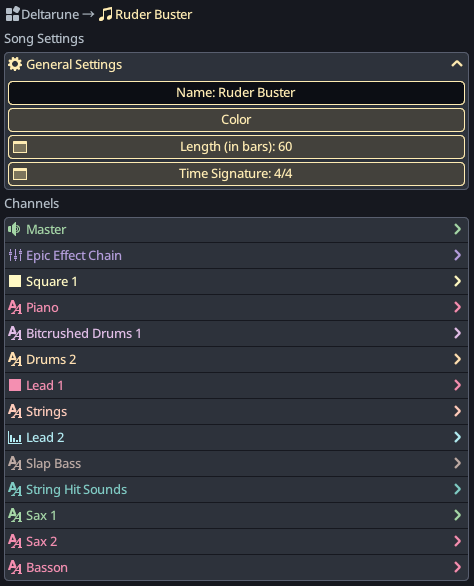
Also displayed along with the song parameters the the list of channels. Clicking a channel will navigate to its parameters, exactly as if you had clicked on the channel name in the sequencer.
Editing channels
Channels are the main type of objects you will be looking at in the project explorer.
There are 3 types of channels in KiraStudio, which we will explore in the following sections.
Effect chains
Effect chains are simple channels that can contain a series of effects (reverb, filters, etc). Instrument channels can send their outputs to these effect chains and they can cascade, ultimately ending at the Master channel.
Please note that unlike traditional DAWs, audio is always sent fully to a single effect chain. As of version 1.0, it is not possible to only partially send audio to a chain, or to send to more than one chain.
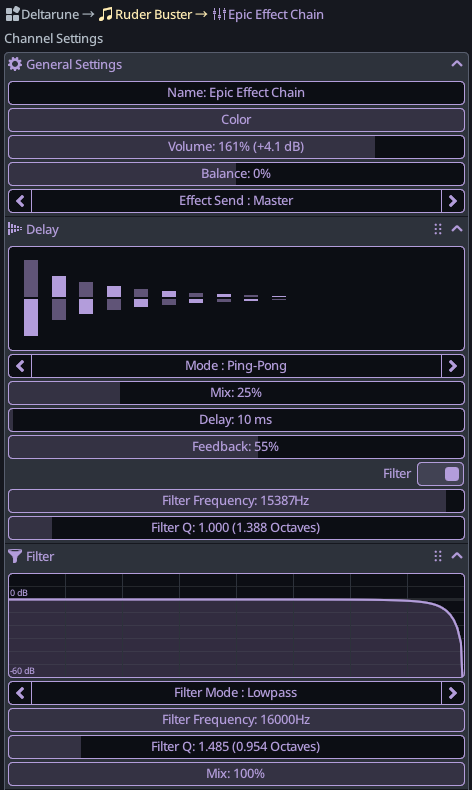
Besides their name/color, effect chains have 3 unique parameters:
- Volume : Basic volume adjustment.
- Balance : Stereo balance adjustment.
- Effect Send : The effect chain to send this channel's audio to.
A much more efficient way of adjusting the volume, balance and effect send of a channel is to use the mixer view of the sequencer.
Effects are applied one at a time, in a top-to-bottom order, but the channel volume and balance are applied at the end, after all effects of the channel have been applied. To alter the volume or balance prior to, or between 2 effects, a dedicated Volume and Pan/Balance effect exists.
For the full list of available effects, please check out the effects reference.
Effects can be added by pressing the (+) Add Effect button below the last effect, and can be deleted by right-clicking (or long-pressing on mobile) on a specific effect and selecting the delete option.
Finally, just like channels in the Sequencer, clicking on the little icon of an effect will disable it. A disable effect will just act as pass-through its icon will appear dimmed.
Master channel
The master channel is a special type of effect chain. There is always one in a song, it is always the final effect chain, and it can never be deleted.
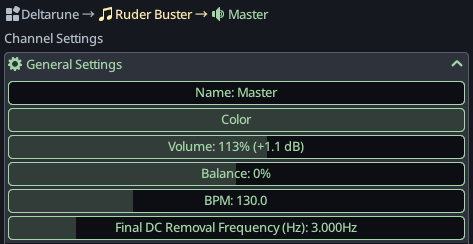
Besides the standard effect chain parameters, the master channel has 2 unique parameters:
- BPM : The main BPM of the song. This value can be automated to create tempo variations.
- Tuning : Frequency (in Hz) of A. The standard, concert pitch, is A = 440 Hz. Can be automated to change the tuning mid-song.
- Final DC Removal Frequency (Hz) : There is a very slight high-pass filter applied on the final output to remove any DC component. Some channels will have their own DC removal feature, but this one is present to avoid clipping when combining asymmetric waveforms.
The master channel may also contain effect(s), and it works the same way as effect chains. Placing effects on the master channel is actually quite efficient, as this will ensure they are only applied once and keep the CPU usage low.
Instrument channels
Instrument channels are the most complex type of channel. They feature all the same parameters as effect chains, but also reference an instrument.
Is it important to understand that instrument channels reference (i.e. use) an instrument present in your project, which can be used by several channels at once. For convenience, when displaying the parameters of an instrument channel, KiraStudio will also show you the parameters of that instrument in the channel. Channels have their own name/color, independent of the name/color of the instrument.
For example, in the image below, the "Bitcrushed Drums 1" channel is purple and uses the instrument "GS ROOM", which is yellow. We are effectively looking at 2 objects: an instrument at the top and a channel at the bottom. This order is to emphasize that effects are applied after generating the audio of the instrument.
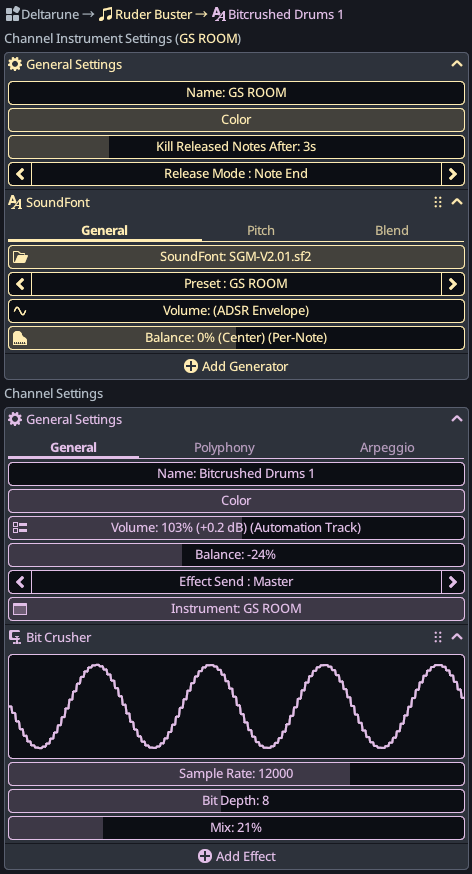
Besides the standard effect chain parameters, instrument channels have a single unique parameter:
- Instrument : This allows changing the instrument used by the channel. Clicking this will allow choosing a different one, or create a new one from scratch.
Instrument channels will also display all the parameters on an instrument, for convenience. These are documented in the section below.
Polyphony parameters
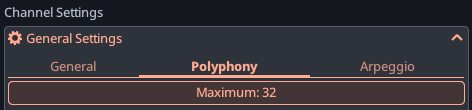
In the polyphony tab, you can change the maximum polyphony of a channel. This can be interesting to create more retro-style instruments where the polyphony of a channel was often 1. When the app runs out of voices, it will kill the voice that has been released for the longest time. If it cannot find any, it will simply kill the oldest voice. Future version may offer more options on how that works.
Arpeggio parameters
The last tab of the instrument channel parameters is dedicated to arpeggios. Arpeggios are used in the piano roll by turning chords into arpeggio chords. This will make chords play as quick succession of notes, mimicking the limited polyphony that early video game consoles had.
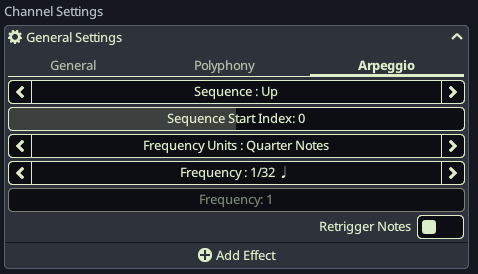
- Sequence : Order in which to play the notes of the arpeggio. If we use the example of a C major chord:
- Up : Will play it as C-E-G
- Down : Will play it as G-E-C
- Up then Down : Will play it as C-E-G-E-C
- Down then Up : Will play it as G-E-C-E-C
- Sequence Start Index : First note in the chose to play, 0 is first note, 1 is second, -1 is last, etc. In our C major example, 0 would start at C, 1 at E, etc.
- Frequency Units : Unit to use for the duration of arpeggiated notes. Quarter Notes are self-explanatory, Project Update Period is related to the Update Frequency of the project.
- Frequency : The frequency, in the selected units.
Editing instruments
Instruments in KiraStudio are composed of Generators. A generator is a small unit able to produce an audio signal. They range from very basic oscillators, such as sawtooth and square waves, all the way to complex things like SoundFonts.
This section will only explain the general principles, a comprehensive generator reference is also provided.
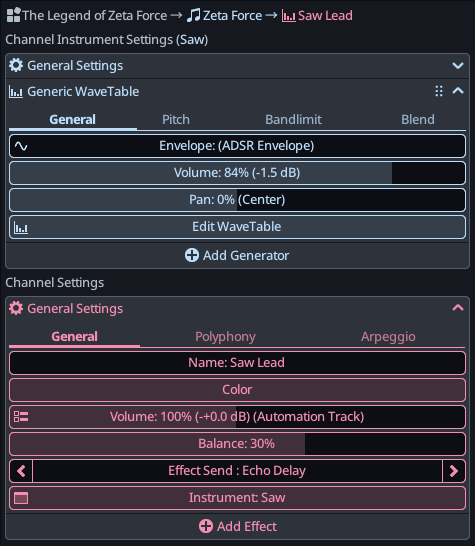
Most instruments will only contain a single generator, but combining them can yield interesting effects. In the example below, a lead instrument is created by adding a pulse-modulated square waveform and a sawtooth waveform.
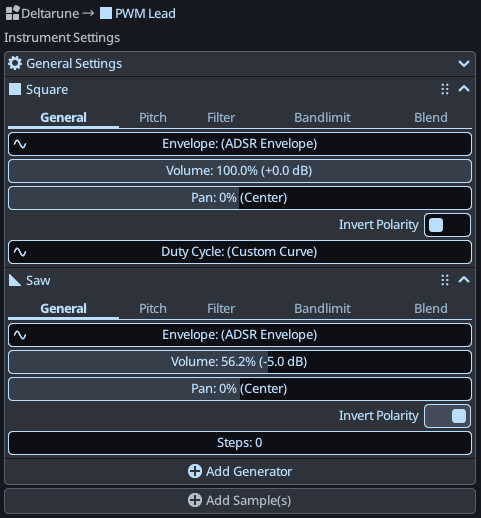
Generators are combined in a top-to-bottom order. When adding generators this is not very important, but when using different Blend Modes, this becomes important.
Much like channels in the Sequencer, clicking on the little icon of a generator will mute it. A muted generator will just output silence and its icon will appear dimmed.
Generators can be added by pressing the (+) Add Generator button below the last generator, and can be deleted by right-clicking (or long-pressing on mobile) on a specific generator and selecting the delete option.
Similarly, samples can be imported by pressing the (+) Add Sample(s) button below the list of generators.
As mentioned in the previous section, instruments can be edited through a channel using the instrument. They can also be edited on their own, by navigating to the root of the project and clicking an instrument. Both achieve the same result, the only difference being that some forms of automation, namely automation tracks and note parameters, can only exist when an instrument is used as part of a channel. In other words, the same instrument used by 2 different channels may have different parameters automated. This will be covered in the following section.
Besides generators, instruments have a couple noteworthy parameters (besides their name/color).
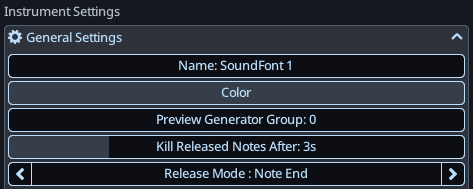
- Preview Generator Group : The generator group to trigger when using a MIDI controller or the pop-up piano.
- Kill Released Notes After : Delay after which any released note will be killed. This is more of an emergency feature to prevent badly designed envelopes from running too long.
- Release Mode : See section below.
Release modes
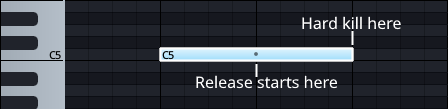
The release mode determines at which moment this instrument should trigger its release. There are 2 release modes:
- Note End : This is what you see in typical DAWs, then the note ends in the piano roll, the release part of the envelope is triggered. This mean there is still sound potentially playing after the note visually ended.
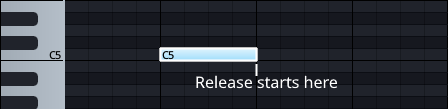
- Manual Release : This mode is when you need to more accurately control when the sound stops exactly, which is often the case when trying to match the sound of retro-gaming. In this mode, the release starts at a point point the note that you manually set in the piano roll (represented by a dot), and any audio will be killed when the note visually ends.
Automating parameters
Automation is the idea of controlling a numeric parameter automatically in some way. In KiraStudio, almost any numeric parameter present on a channel, generator or effect can be automated in various ways.
To automate a parameter, simply right-click (or long press on mobile) on a slider with a numeric parameter, and choose one of the Control Parameter With .... Depending on the option, this will either create a new curve, new track, etc.
The app supports automating parameters in 5 different ways:
- ADSR envelope : A traditional ADSR envelope with simple control over the various Attack/Decay/Sustain/Release phases.
- Custom curve : A custom drawn curve containing an arbitrary number of vertices and segments, with optional loop and release points.
- Sequence : A discrete sequence of values that advances at a fixed frequency.
- Automation track : A track on a channel that can have curve segments existing in patterns.
- Per-note parameter in the piano roll : An additional parameter that is added to every single note in the piano roll.
Not every option will be available on every parameter, the application will try to offer what makes sense for a given parameter.
When it comes to instruments, the list of possible automation methods will vary depending on how the instrument is being edited:
- When editing the instrument alone (Project → Instrument), outside of a channel by selecting it from the project explorer, you will not have the option of automating anything with automation tracks or per-note parameter since the app needs a channel to do so.
- When editing the instrument from an instrument channel (Project → Song → Instrument Channel), you will have all the options.
When a parameter is controlled by a curve (ADSR, custom curve or sequence), that parameter is completely taken over by the curve and the automation will be audible even when previewing instruments using a MIDI controller or the pop-up piano. The slider will be disabled
Parameters controlled by automation tracks or per-note will only have their automation active when playing the song. The slider will remain active and can be tweaked to affect the preview of instruments. For automation tracks, the slider value also dictate the default value of the automation track, which is the initial value before any vertices are drawn.