Controls
Basic Desktop Controls
Most operations are performed with the mouse. In general:
- The Left mouse button adds and removes stuff.
- Single-clicking adds notes/patterns.
- Double-clicking deletes notes/patterns.
- The Right mouse button opens context menus and selects things.
- Right-clicking quickly will open a context menu.
- Right-clicking + holding and dragging will select a range of notes or patterns in the piano roll or sequencer.
- The Middle mouse button is used for navigation:
- Middle-clicking + holding and dragging will pan the viewport.
- Rotating the mouse wheel will zoom the viewport in/out.
If you are working on a trackpad, please check out how to enable Trackpad controls in the configuration dialog.
Basic Mobile Controls
On mobile, there are 4 main gestures used:
- A Quick Tap will usually add stuff such as patterns, notes, or vertices on a curve.
- A Swipe will pan the viewport around.
- A Pinch will zoom the viewport in/out.
- A Long Press on something will reveal advanced options or start a rectangular selection. In some cases where multiple actions are available (ex: selection + contextual menu), a pulsing circle will appears to give you a choice.
Main Window
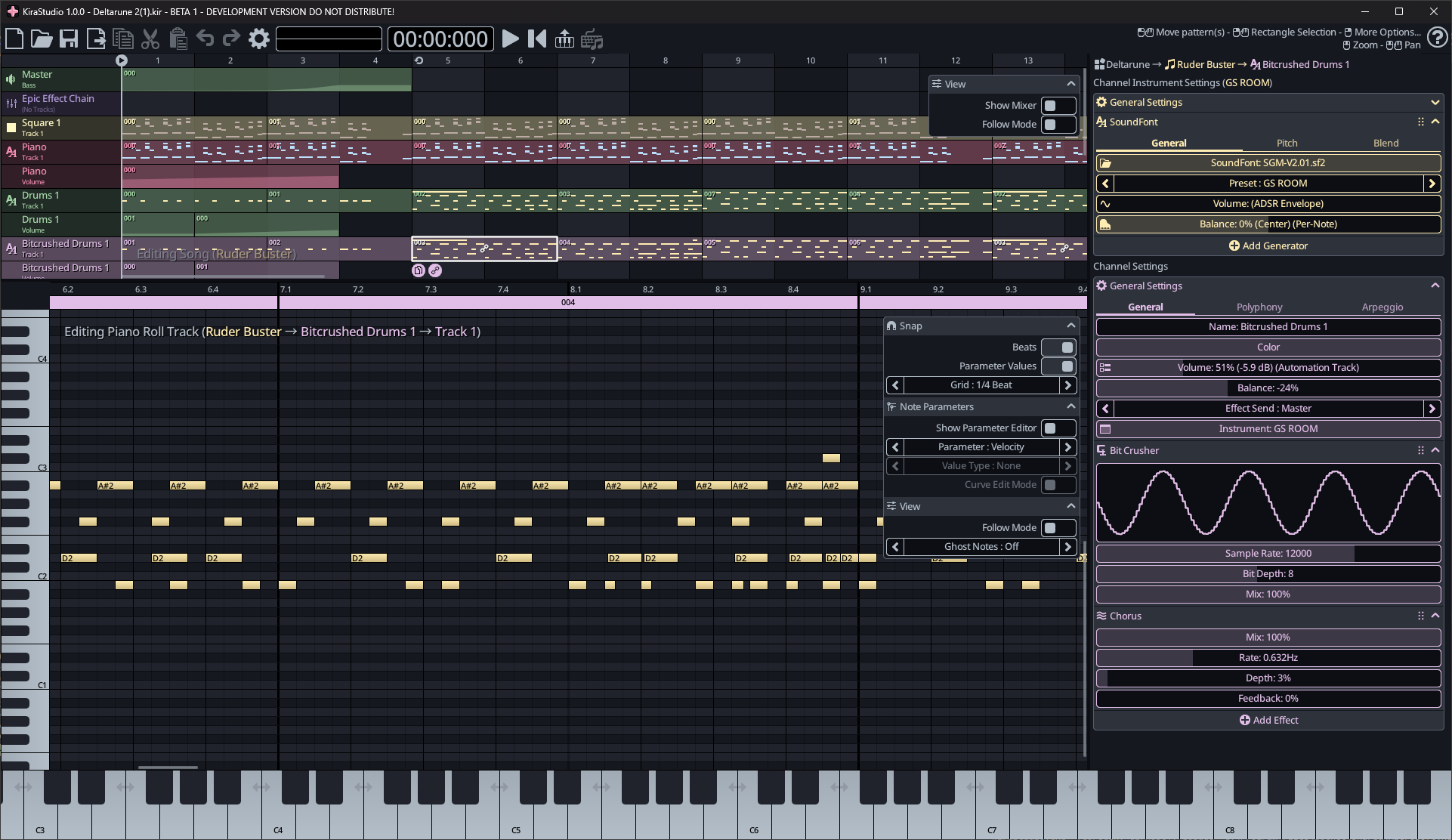
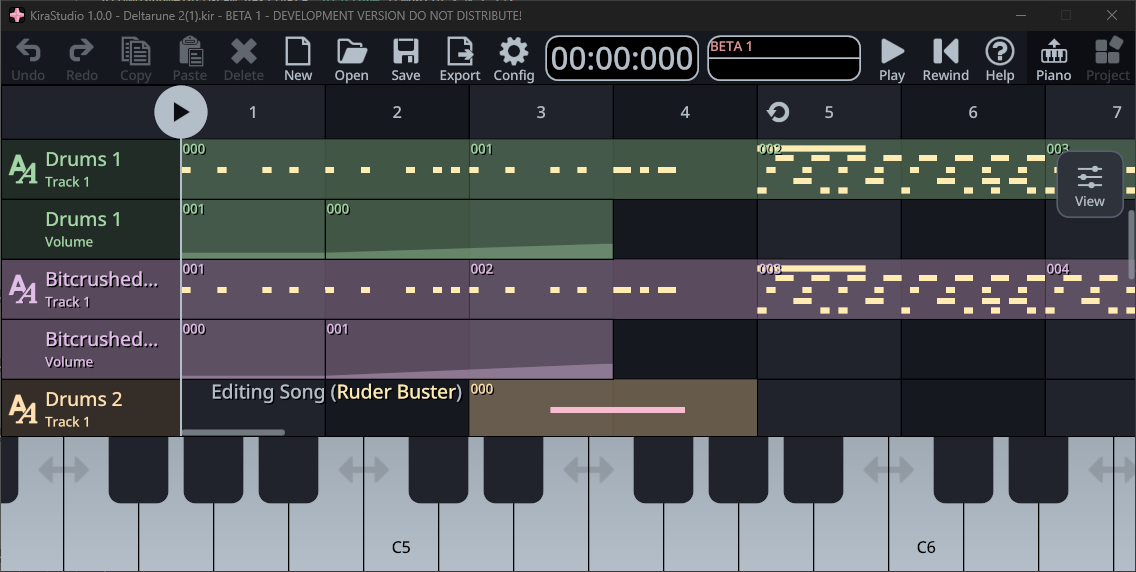
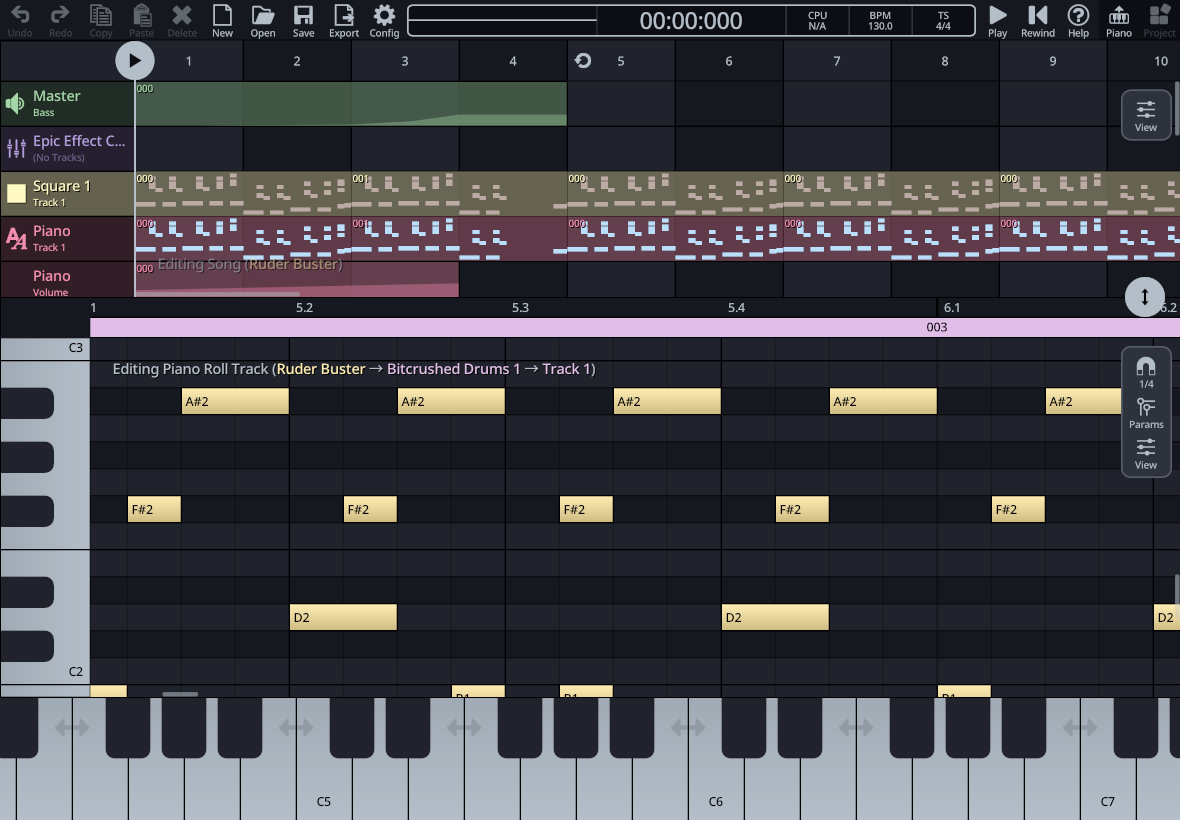
The main window is composed of a few main controls:
-
The Toolbar contains shortcuts to various common functions such as undo/redo, copy/paste, etc.
-
The Sequencer (or Pattern Editor) is where you add or remove channels & tracks. It is also where you organize patterns, which are reusable little snippets of music that form the high-level structure of your songs. On mobile, this is your home base and where you always return to when you close every other view.
-
Below the Sequencer are various views such as the Piano Roll, Automation Track Editor, various Curve Editors and so on. On mobile, these views are full-screen and can be opened and closed as needed.
-
The right-side panel is the Project Explorer. This panel allows for navigating through the various objects in your projects (songs, instruments, effects, etc). It also enables the editing and automating of parameters for these objects. On mobile, this panel retracts and can be opened by either pressing the Project button in the toolbar or by double-tapping a channel in the Sequencer.
-
The Pop-up Piano is at the very bottom. This piano allows the previewing of instruments associated with the Active Channel, which is the highlighted channel in the Sequencer. This piano can be toggled using the Piano button in the toolbar.
Undo / Redo
The app has full support for undo/redo, so you can edit confidently knowing you can always go back to an earlier point in time.
Undo/redo is accessed through the 2 arrows buttons on the toolbar, or using Ctrl+Z for undo and Ctrl+Y for redo (or alternatively Ctrl+Shift+Z).
By default, the app clears the undo/redo stack when saving a project. This is done to save memory, but cant be disabled in the settings of the app.
Sliders
Unlike other audio apps that like to use various knobs for numeric parameters, KiraStudio relies entirely on sliders. You will find them all over the app, and through them you will be able to automate various parameters.
These sliders have a few features that may not be immediately apparent.
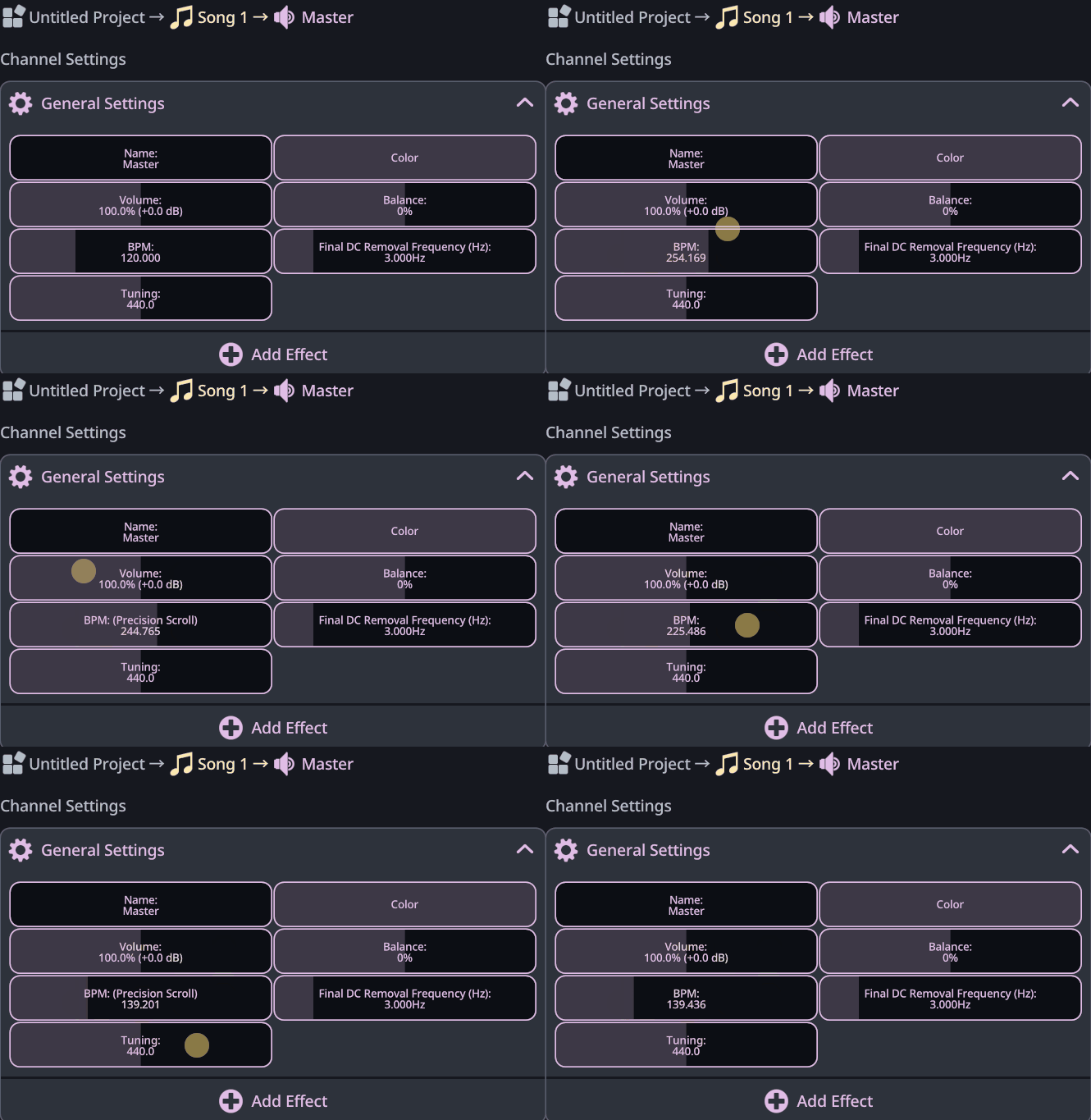
Precision scrolling
To dial-in a value more accurately, you can switch to precision scrolling. On desktop, this is achieved by holding Ctrl while changing the value.
On mobile, this is done by moving your finger above or below the axis or a slider.
In the animation below, you can see that at first, the slider moves 1:1 with the finger, but that as soon as the finger moves outside of the slider (above or below), the app switches to precision scrolling.
Text input
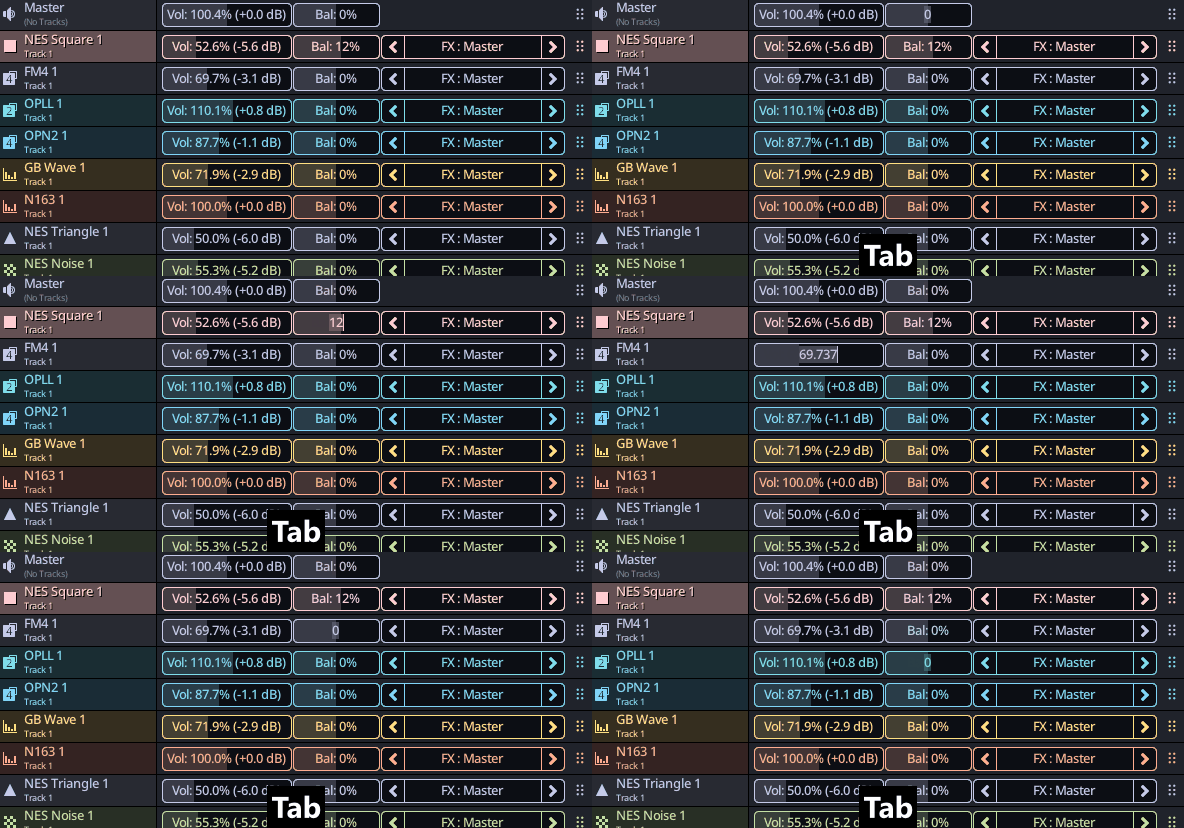
On desktop, you can type values into widgets like textboxes and sliders. For textboxes, just clicking on them will switch to keyboard input, but on sliders you will need to Double-Click.
Moreover, using the Tab key will always jump to the next widget supporting text input in the current view. If you are not already inputting text, it will jump to the first widget that can receive text.
This allows quickly jumping between sliders as shown in the animation below.