Configuration
The configuration dialog is accessible by clicking the gear icon from the main toolbar.
General
-
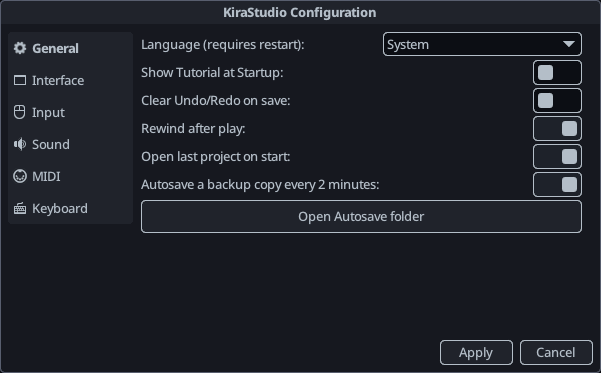
Language: Language to use in the app. These translations are user-contributed and may vary in quality/completeness. By default, FamiStudio will try to make a best-guess based on the language of the OS.
-
Show Tutorial at Startup: If enabled, the on-boarding tutorial will be showed when FamiStudio is launched.
-
Clear Undo/Redo on save: Wipes the undo/redo stack every time the project is saved. This help keep the memory usage lower, but limits your ability to undo indefinitely.
-
Rewing after play : If enabled, the play head will move back to its previous location when stopping playback.
-
Open last project on start: Remember which project you last open and re-opens it next time you launch KiraStudio.
-
Auto-save a copy every 2 minutes: Save a backup copy of the current project every 2 minutes. This may prevent loosing data when the application crashes.
-
Open Autosave folder: Opens the autosave folders. The location of the autosave folder will vary depending on the operating systems. Autosave files cycle through 100 numbered filenames, overwriting old files if needed. Sort the files by modification date/time to find the latest backup.
Interface
-
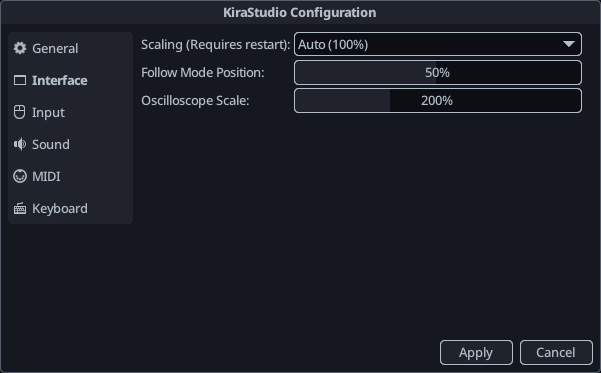
Scaling: By default, KiraStudio will use the scaling of your primary monitor on Windows (100%, 150% and 200% are support) and on macOS it will choose between 100% or 200% depending on if you have a retina display or not. On mobile it will try its best to pick a decent value based on the screen size and resolution. This behavior can be overridden by a scaling of your choosing. This requires restarting the app.
-
Follow Mode Position: The position the playhead will try to stick to when follow mode is enabled in a view that supports it (sequencer, piano roll, automation track editor). 50% would be the middle of the view.
-
Oscilloscope Scale: Scale of the oscilloscope waveform in the toolbar. A scale of 100% means anything outside the box resulted in clipping.
Input
This section is only available on desktop.
-
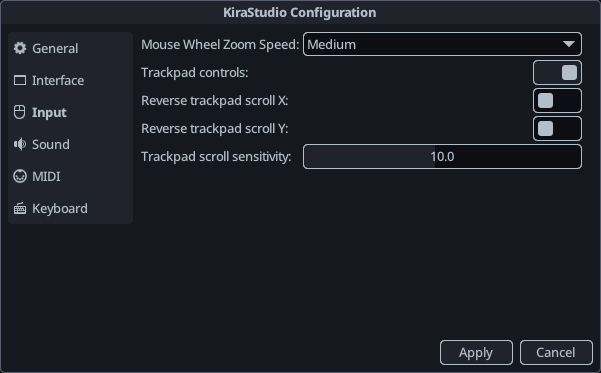
Mouse Wheel Zoom Speed: The amount by which the app will zoom in/out every time you rotate the mouse wheel.
-
Trackpad controls: Enabling trackpad controls will switch to a control scheme that is better suited for trackpad users:
- You will be able to swipe up/down/left/right on the trackpad to pan around.
- Pinch to zoom (or alternatively Ctrl+Swipe) will zoom in/out. This gesture is not supported on Linux.
-
Reverse trackpad scroll X/Y: Can be used to flip the direction of the trackpad scrolling.
-
Trackpad scroll sensitivity: Can be used to increase/decrease the sensitivity of the trackpad controls.
Sound
-
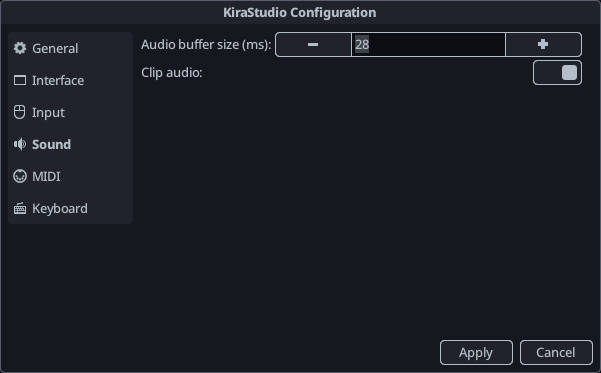
Audio Buffer Size : The size of the internal audio buffer, in milliseconds. It is recommended that you set this to the smallest number your computer/phone is able to handle without the audio becoming choppy. On some platforms, the OS may clamp this to the minimum size supported by the hardware, so you may stop seeing a reduction in latency below a certain value.
-
Audio Buffer Size : If enabled, real-time audio will be clipped to -1...1 before being sent to the audio device. Does not affect exported audio.
MIDI
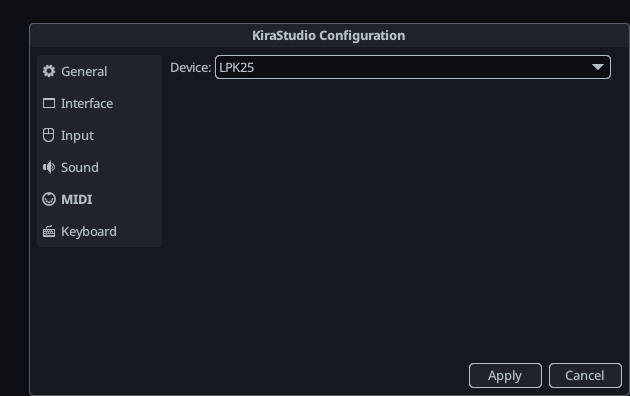
- Device: Allows choosing the MIDI device to use for previewing instruments. MIDI support is very barenone at the moment and can only be used for previewing instruments. On some platform, it may be necessary to re-open the configuration dialog, or even restart the app, to see newly connected MIDI devices. Only the note value and the associated velocity are read from the controller.
Keyboard
This section is only available on desktop.
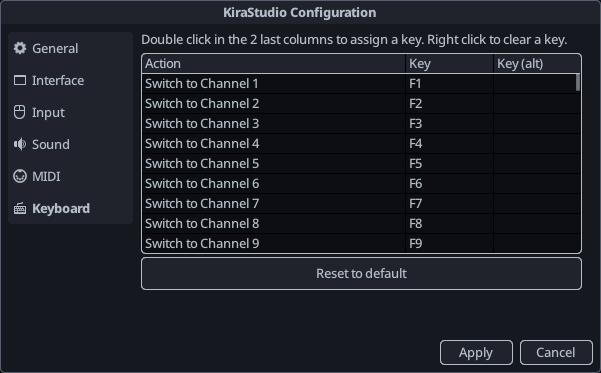
This section allows remapping the keyboard shortcuts for most actions. The default layout will usually be based off the QWERTY layout, but it can be modified after to support arbitrary keyboard layouts such as QWERTZ or AZERTY.
Mobile
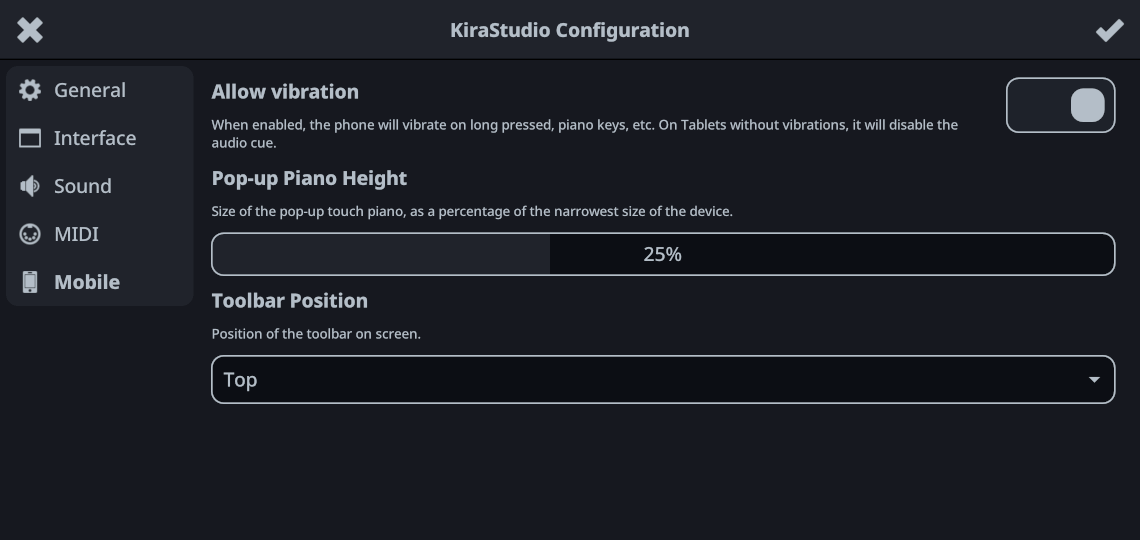
This section is only available on mobile devices.
-
Allow vibration: When enabled, the phone will vibrate on long pressed, piano keys, etc. On Tablets without vibrations, it will disable the audio cue.
-
Pop-up Piano Height: Size of the pop-up touch piano, as a percentage of the narrowest size of the device.
-
Toolbar Position: Position of the toolbar on screen. The left position is only available on phone devices and will use a 2-columns layout, while the top/down positions will use a single row.